Help & Guides
Quick links
Add to Home Screen on iPhone (iOS)
Installing Charge On on your Home Screen is strongly recommended on iPhone. It opens full-screen, keeps you signed in, and makes Google sign-in reliable.
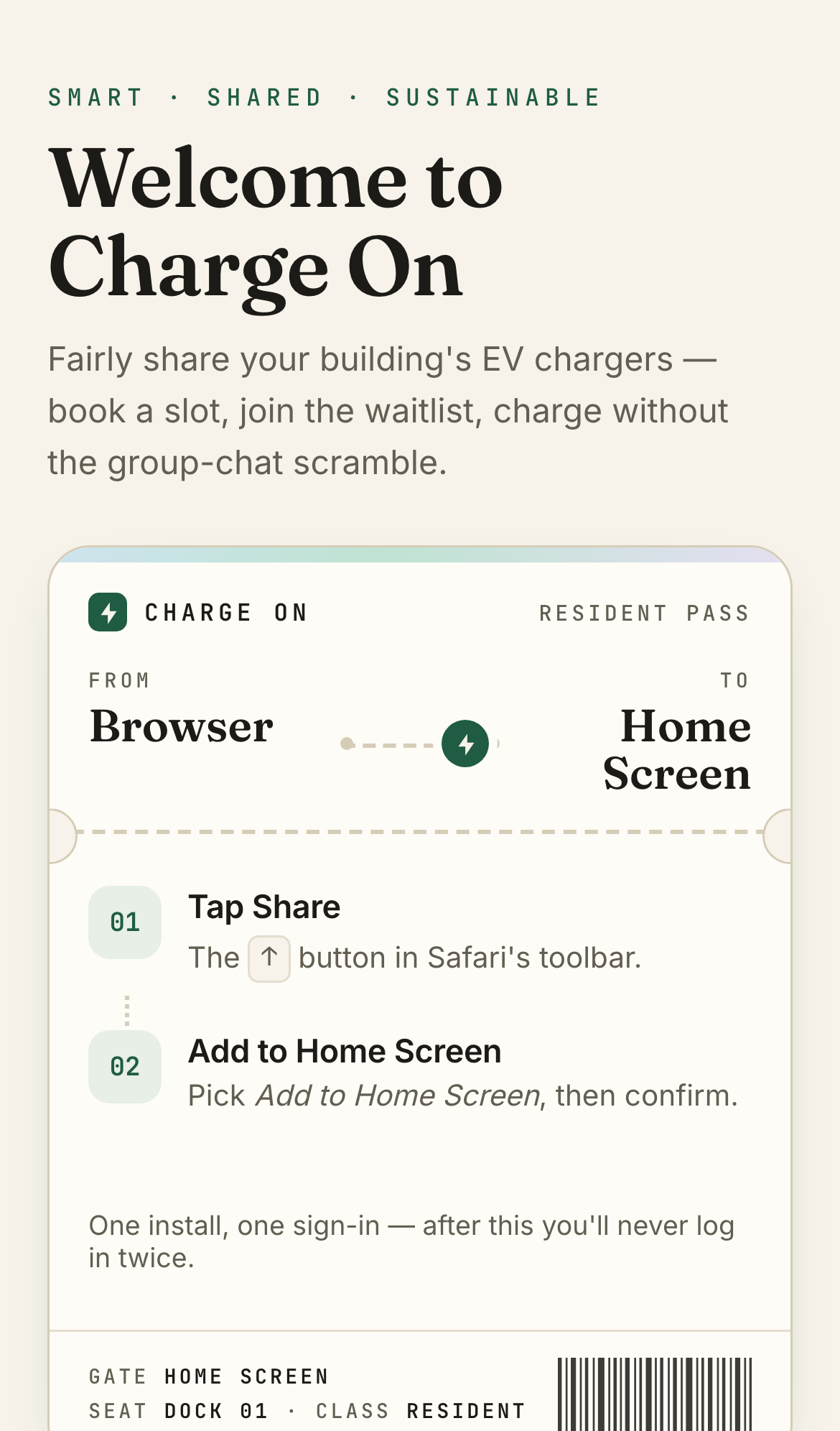
- 1. Open the site in Safari Go to chargeonapp.com. If you are in WhatsApp or another app, tap the link and choose Open in Safari.
-
2. Tap Share
On most iPhones: tap the Share button (square with an arrow) at the bottom of Safari.
On some newer layouts: tap ⋯ More at the bottom right, then choose Share. - 3. Choose Add to Home Screen Scroll down the share sheet. If you do not see it, tap Edit Actions or More and enable Add to Home Screen.
- 4. Confirm the install Keep Open as Web App turned on. Tap Add. The Charge On icon appears on your Home Screen.
- 5. Open from the icon Close Safari and launch Charge On from your Home Screen. Sign in with Google from the icon — not from a browser tab you had open earlier.
Need step-by-step help? Tap Help & guides on the welcome screen before you install.
Install on Android
Chrome on Android can install Charge On in one tap when the browser offers it.
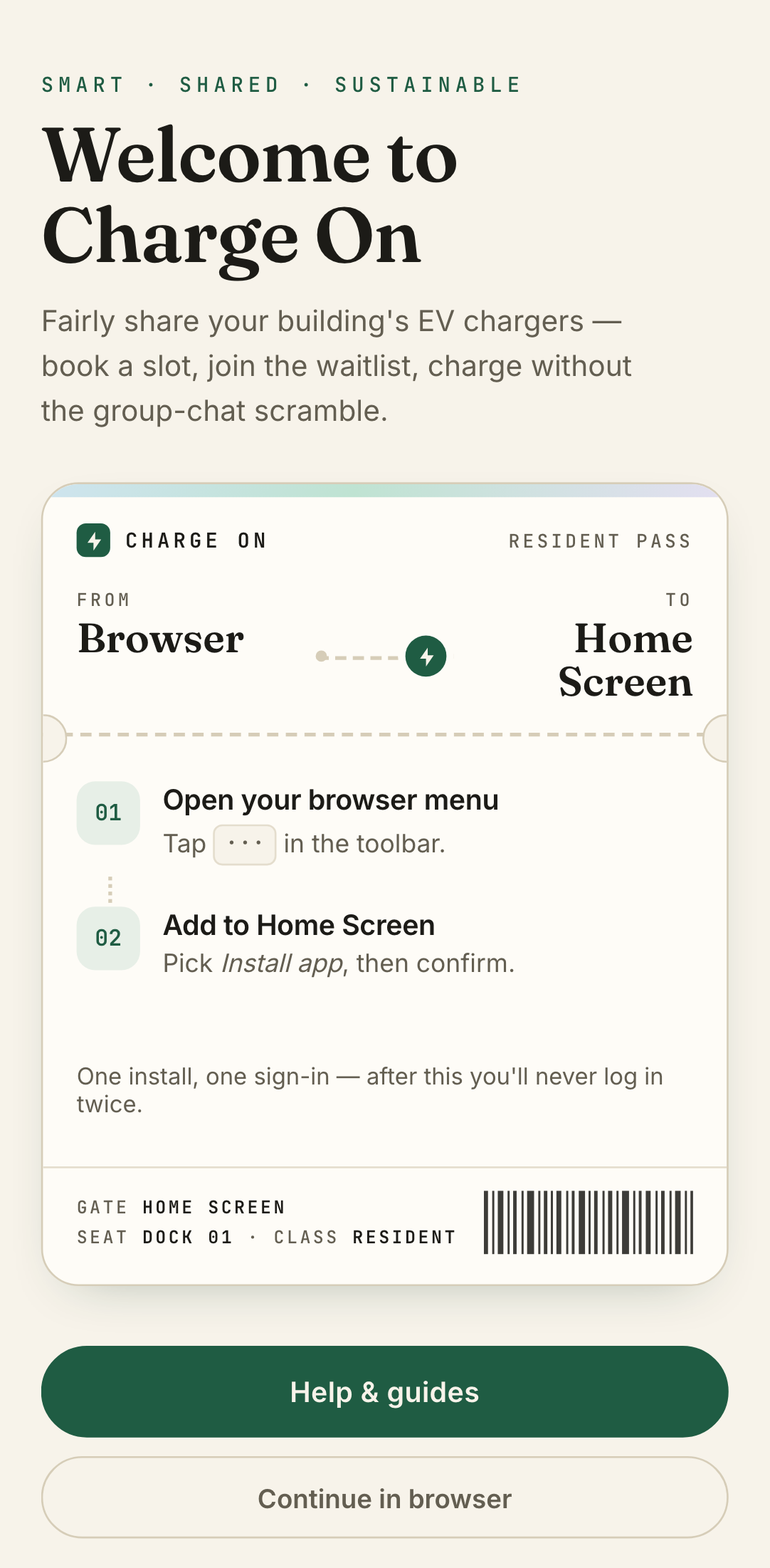
- 1. Open in Chrome Visit chargeonapp.com in Google Chrome.
- 2. Use the install prompt If you see Add to Home screen on the welcome screen, tap it and confirm Install in the Chrome dialog.
- 3. Or use the menu Tap the three-dot menu (top right) → Install app or Add to Home screen → confirm.
- 4. Open the icon Launch Charge On from your app drawer or home screen and sign in.
Install on desktop (Chrome / Edge)
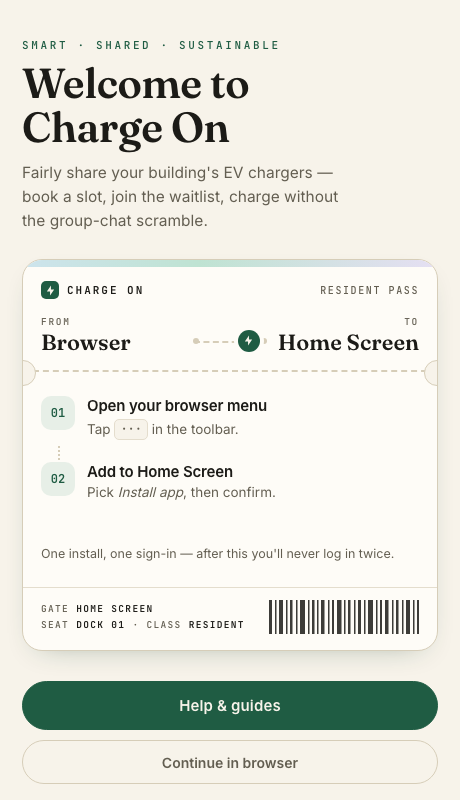
- Open chargeonapp.com in Chrome or Microsoft Edge.
- Look for the install icon in the address bar (monitor with a down arrow) or open the browser menu.
- Choose Install Charge On or Install app.
- The app opens in its own window and is listed in your applications.
Desktop install is optional. You can also use Charge On in a normal browser tab.
Open Help & guides from the welcome screen, or later from Profile → Settings.
Sign in with Google
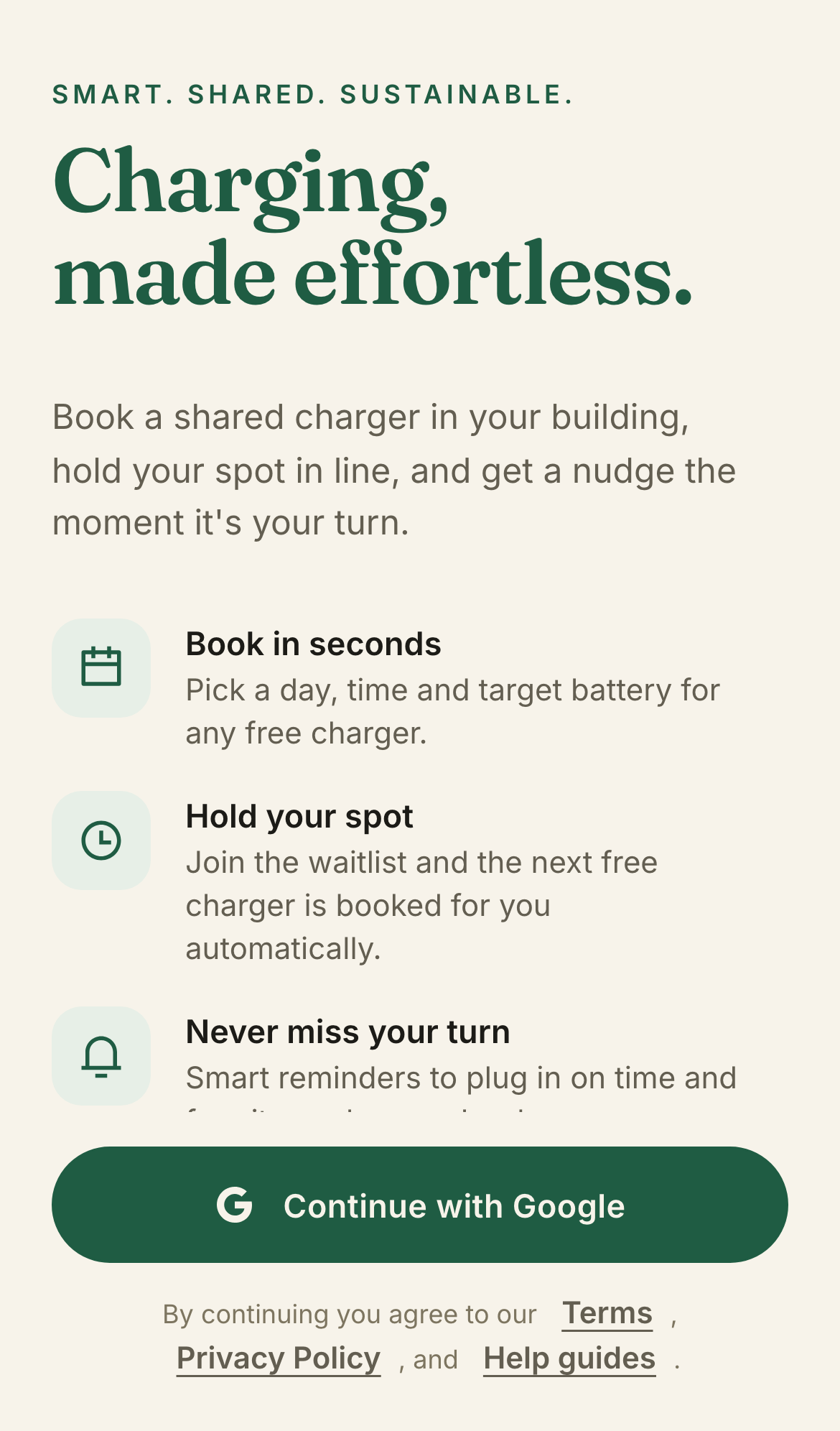
- Tap Continue with Google on the welcome screen.
- Pick the Google account you want to use for your flat.
- On mobile, sign-in uses a secure redirect — you may briefly leave the app and come back. That is normal.
- Use the same account every time. Each Google account is one resident profile.
First-time setup (onboarding)
After sign-in, you will complete a short setup:
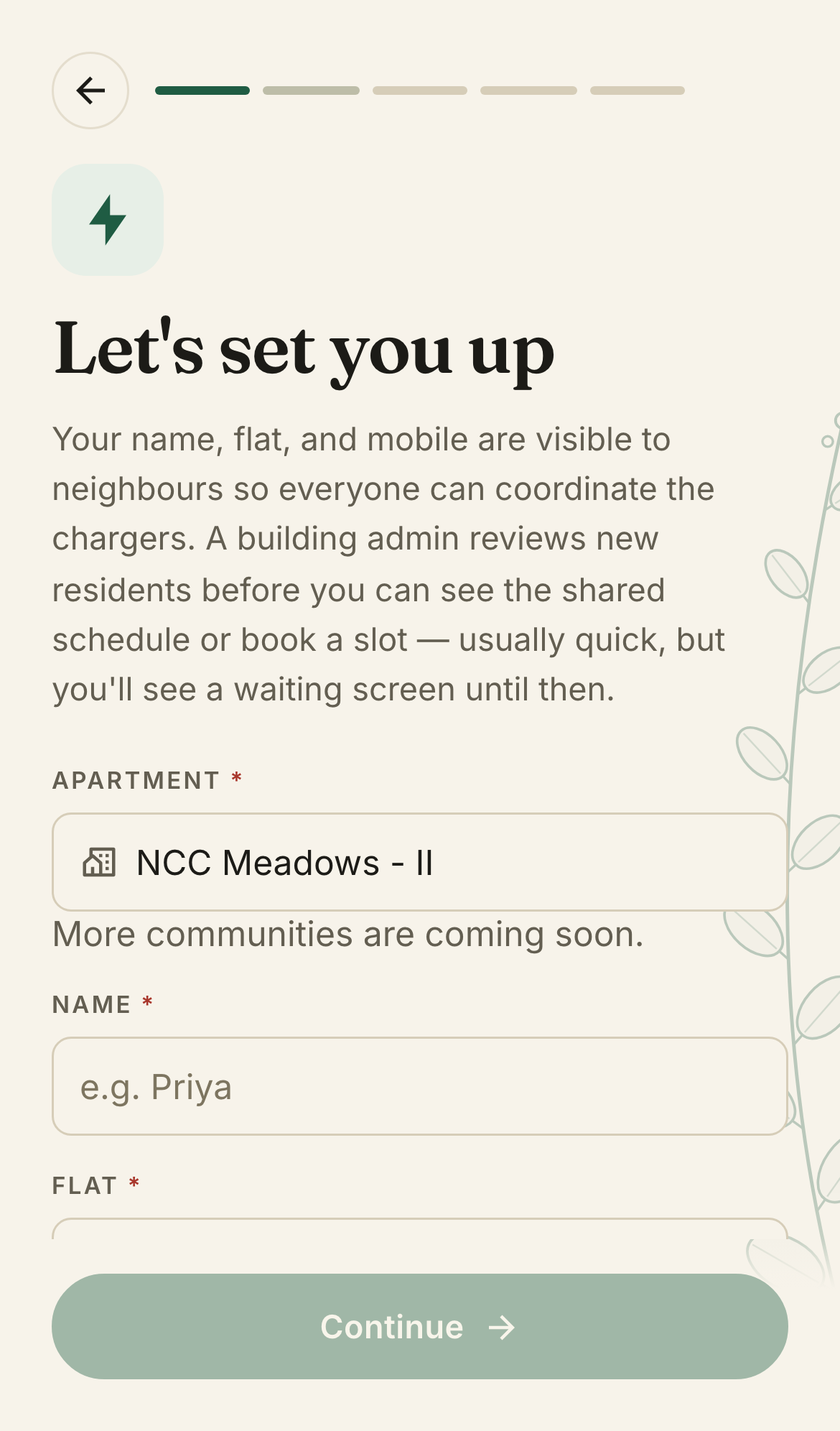
- Your details — name, flat number, apartment/community, and mobile number. Neighbours in your building see this on bookings so everyone can coordinate.
- Your vehicle — pick make/model (or enter custom), battery size, and registration plate. At least one vehicle is required before you can book.
- Notifications — optional but recommended. Allow browser or app notifications so you get slot reminders and updates.
- Add to Home Screen — optional step with device-specific instructions (see install guides above).
You can update your profile and vehicles later from the Profile tab.
Waiting for approval
New residents must be approved by your building admin before the shared schedule unlocks.
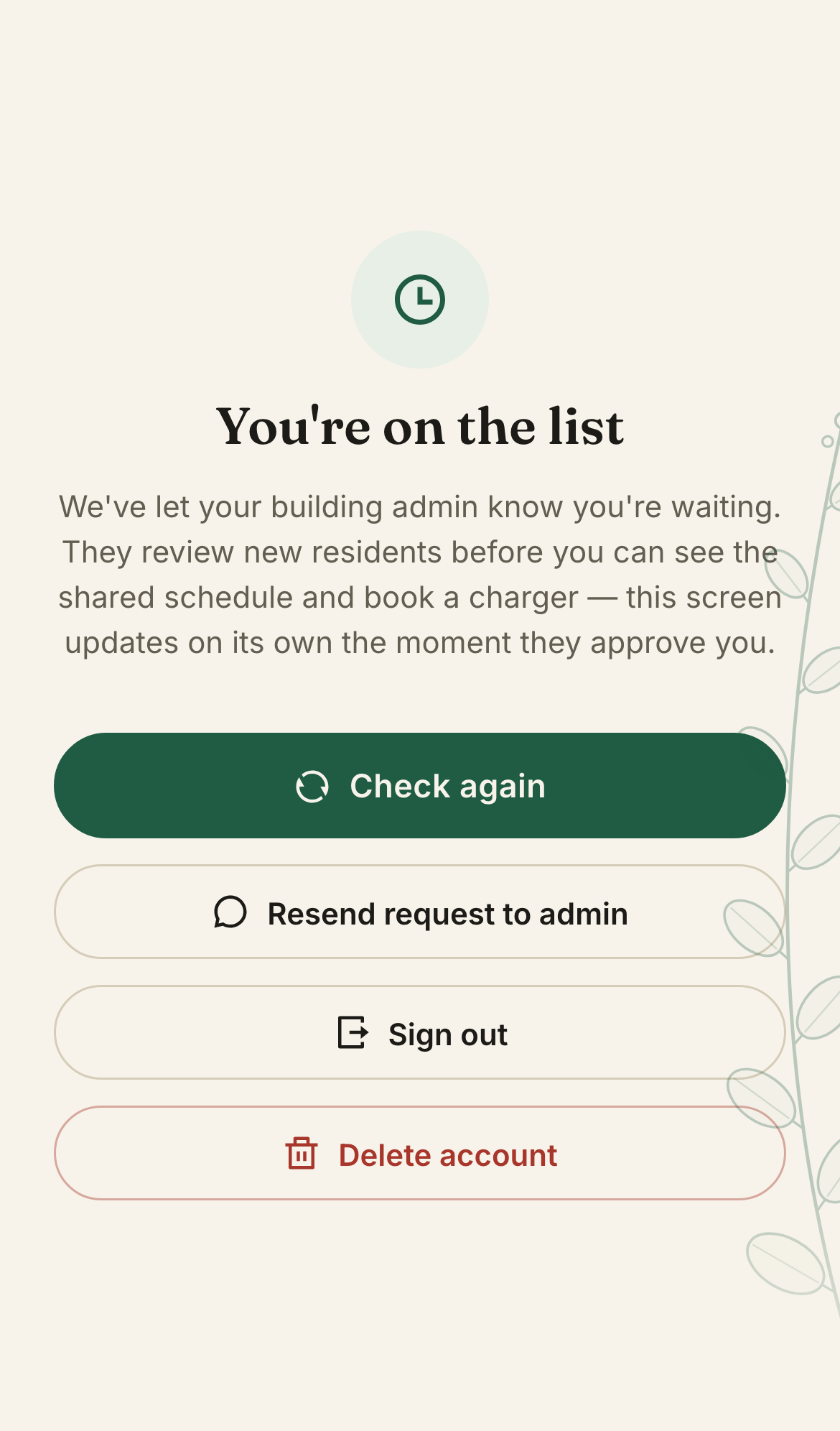
- After setup, you may see Waiting for approval. Your request was sent to the admin team.
- The app checks automatically every few seconds — you do not need to keep tapping refresh.
- When approved, you will get an in-app notification and land on the home screen.
- If declined, you will see a message and can contact your building admin or delete your account from that screen.
Book a charging slot
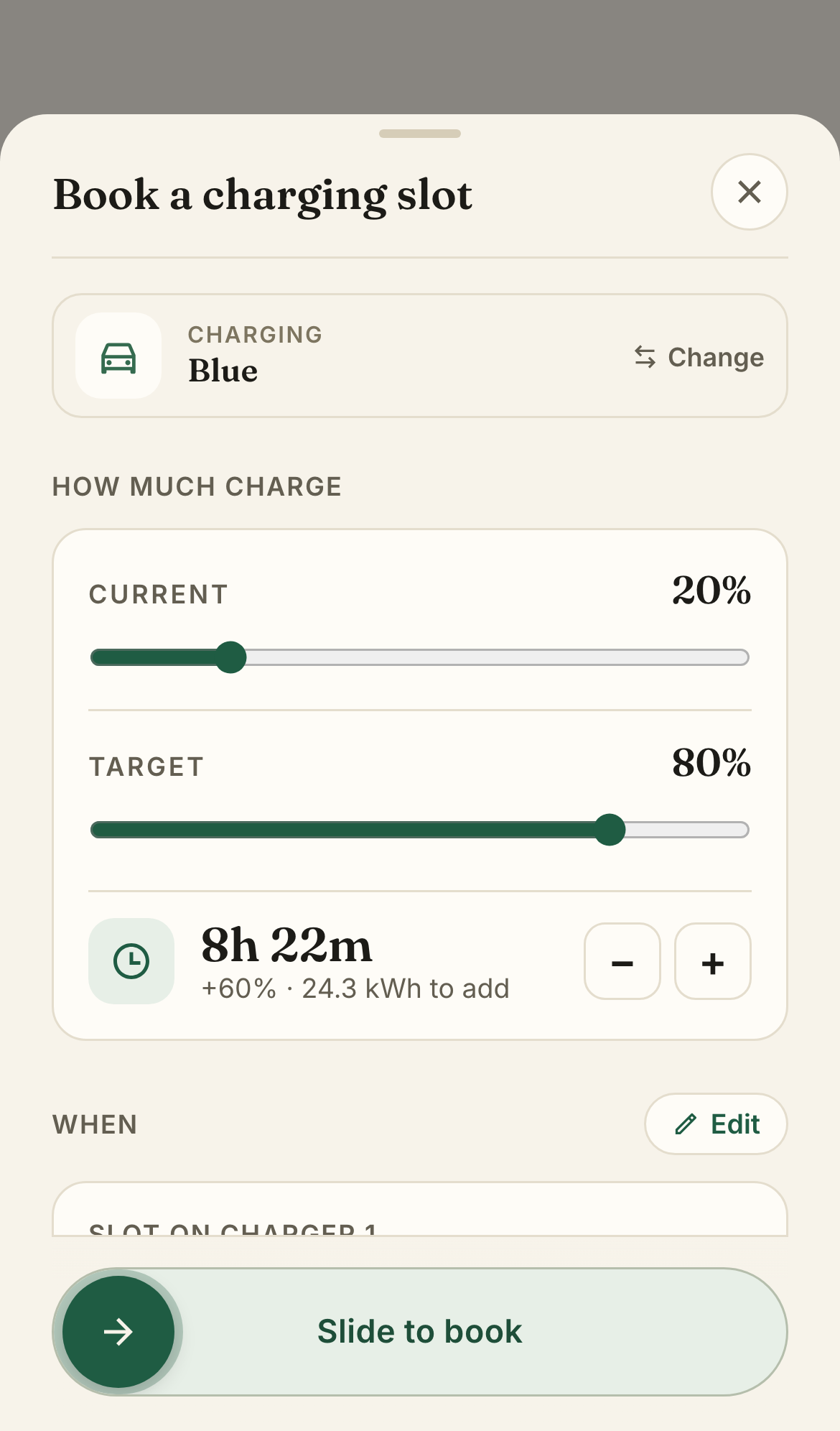
- Open the Home tab and tap Book a slot (or tap an empty slot on the schedule).
- Pick a date, start time, and target charge level (how much battery you want by the end).
- Choose which vehicle you are charging and which charger if your building has more than one.
- Confirm the booking. Your slot appears on the shared schedule for your neighbours to see.
Arrive and tap Start within the grace period (about 15 minutes) or the slot may be released for the next person.
Emergency charge
Need to charge right now and every charger is busy? Send an emergency request instead of waiting.
- From Home, tap Need to charge right now? at the top of the schedule.
- Explain why it's urgent — this doesn't need a vehicle or a time slot.
- Neighbours currently charging are notified and can choose to free their charger for you.
- If someone does, that charger is held exclusively for you for a short window — you'll see a "Book now" prompt.
While you are charging
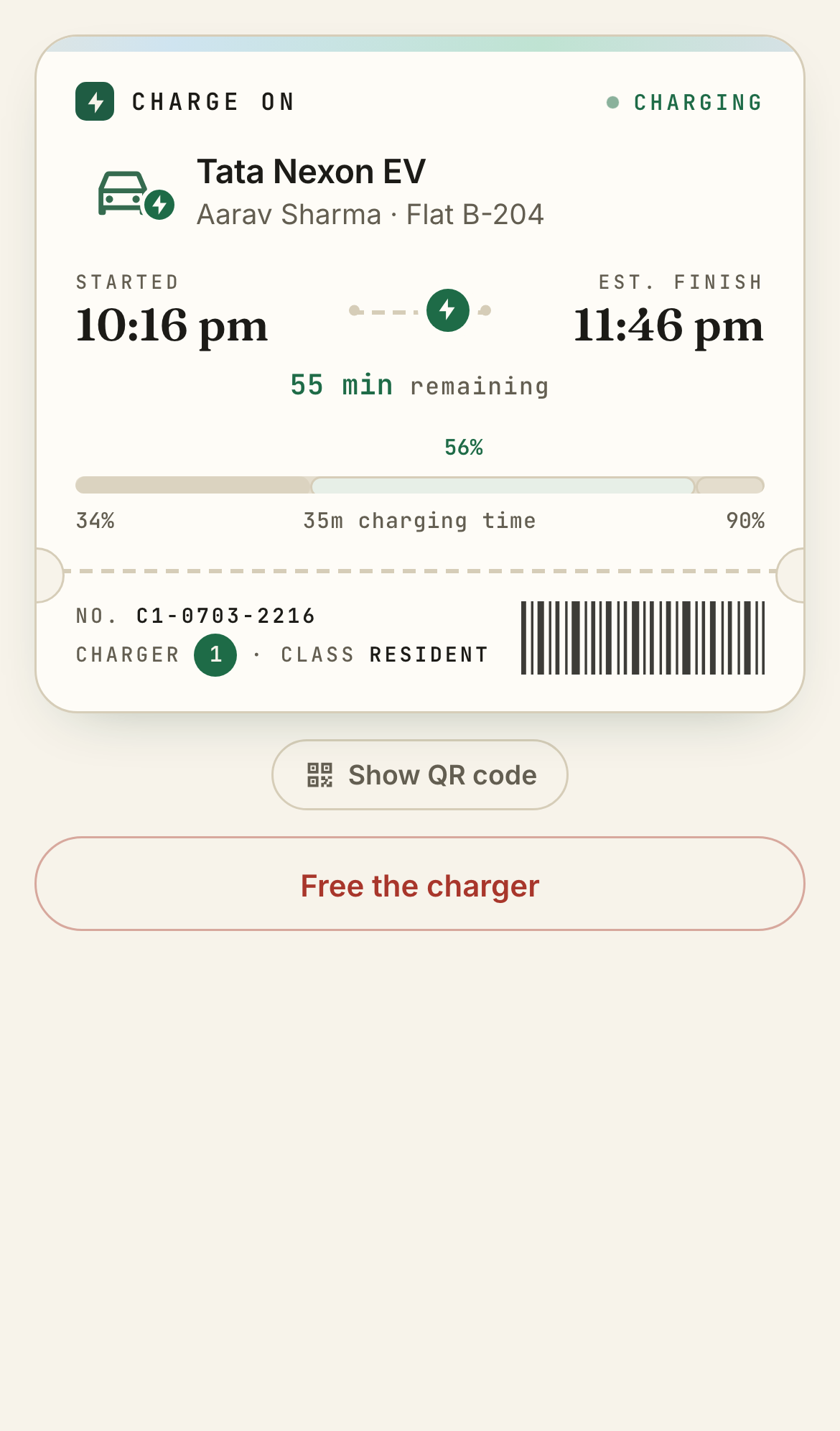
- At the charger, open your booking and tap Start when you plug in.
- The live ticket shows time remaining and charger number.
- When finished, tap End / free the charger so the next neighbour can use it.
- If something is wrong (charger fault, someone else on your slot), use Report an issue from the booking.
Charger out of order
If a shared charger is dead, tripped, or won't start a session, flag it so neighbours see a warning and it drops out of new bookings.
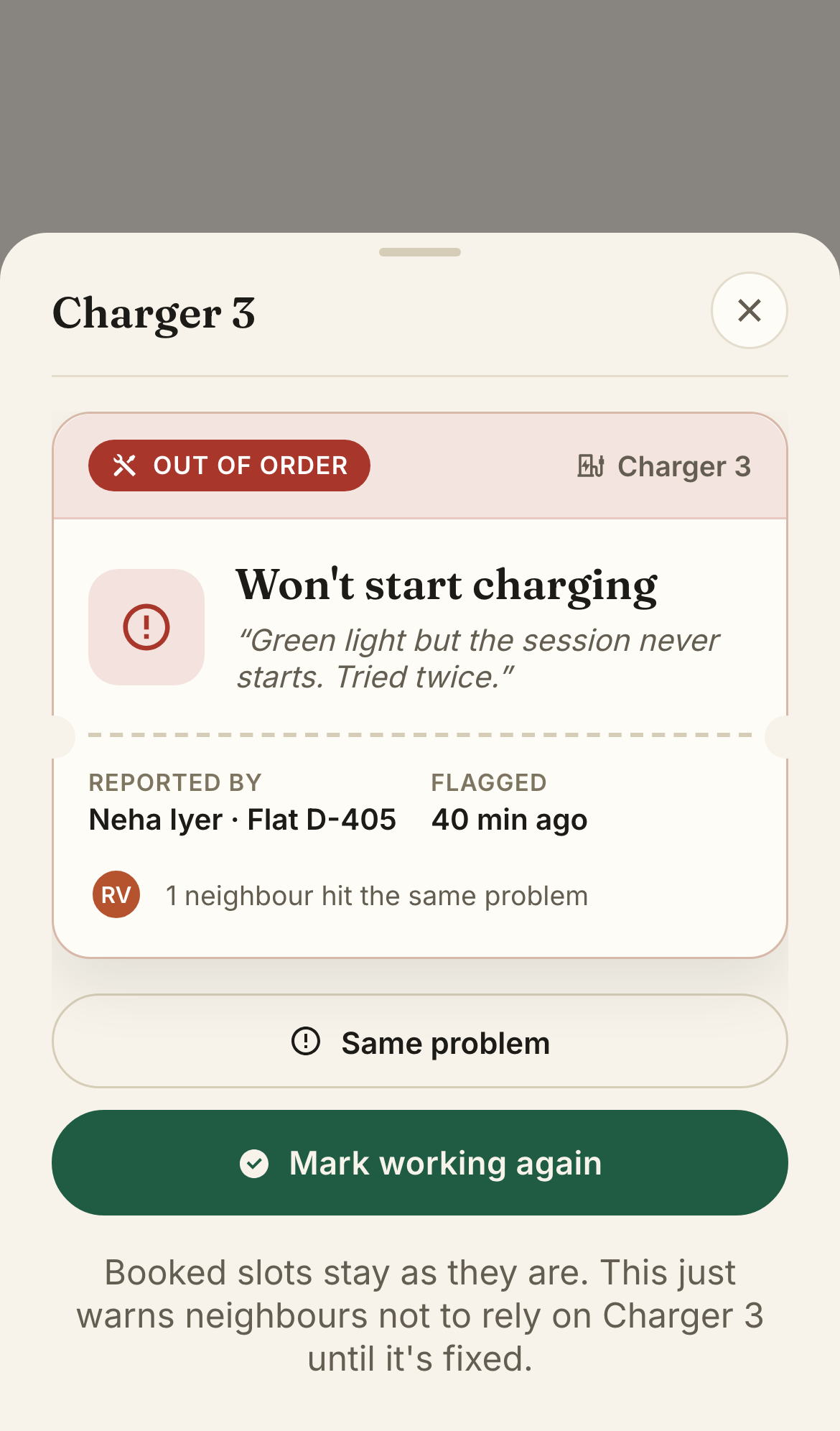
- On Home, a pink banner appears when any charger is flagged. Tap it or tap the charger icon on the schedule.
- To report a fault, open a working charger → choose what's wrong → optional note → Mark out of order.
- Neighbours see the fault and can tap Same problem if they hit it too.
- When it's fixed, whoever is at the charger taps Mark working again so bookings reopen on that charger.
Existing bookings stay put — this only warns people and blocks new bookings on that charger until it's cleared.
Notifications & reminders
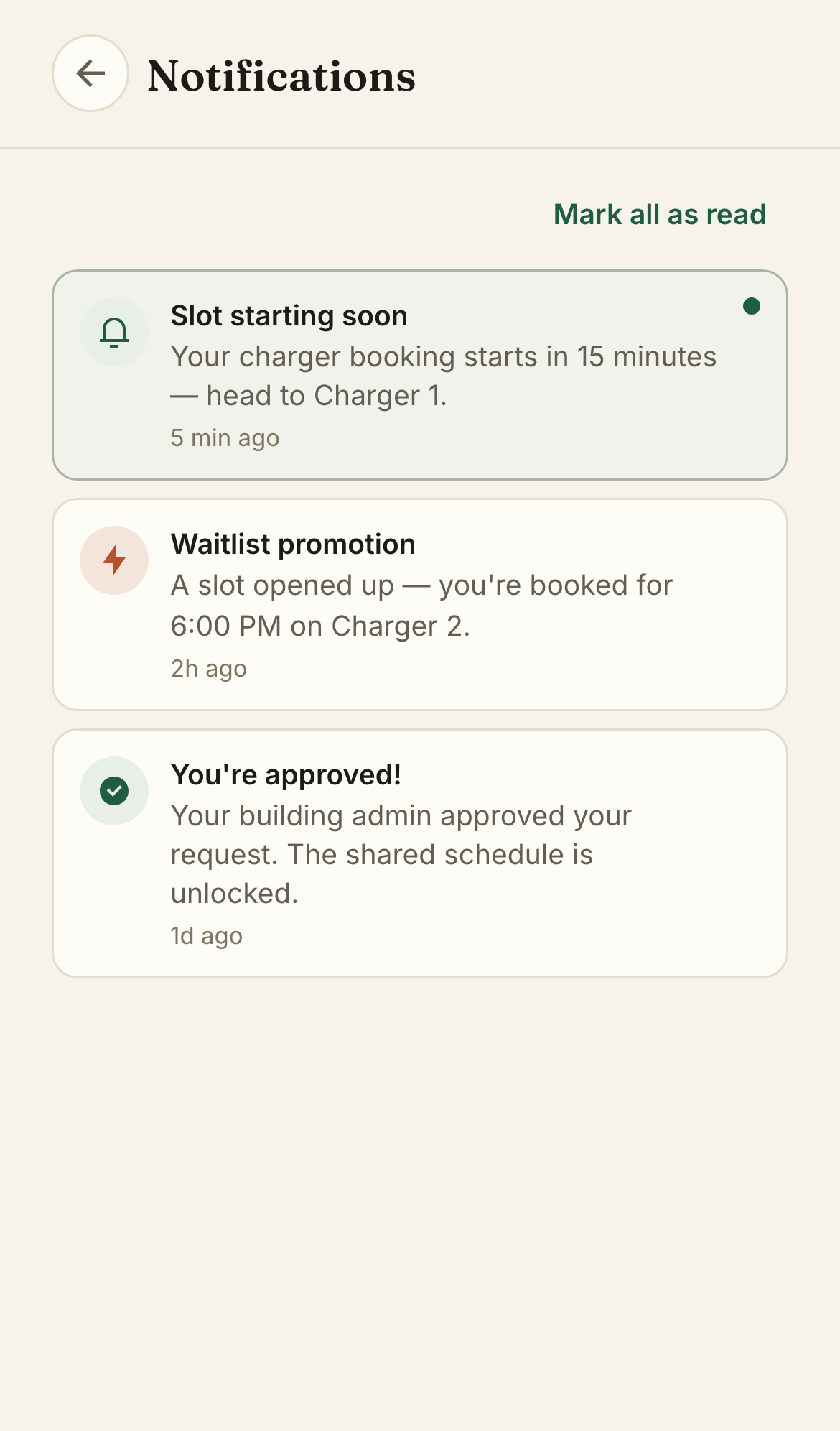
In-app notifications (bell icon)
Works without extra permission. Open Profile → bell icon for booking updates, freed-slot alerts, and approval status.
Phone / browser notifications
- Enable in Profile → Settings → notifications toggle.
- When prompted, tap Allow. If you previously blocked them, open your phone's Settings → Safari/Chrome → Notifications and allow Charge On.
- Installed home-screen apps generally get more reliable reminders than a background browser tab.
Profile, garage & settings
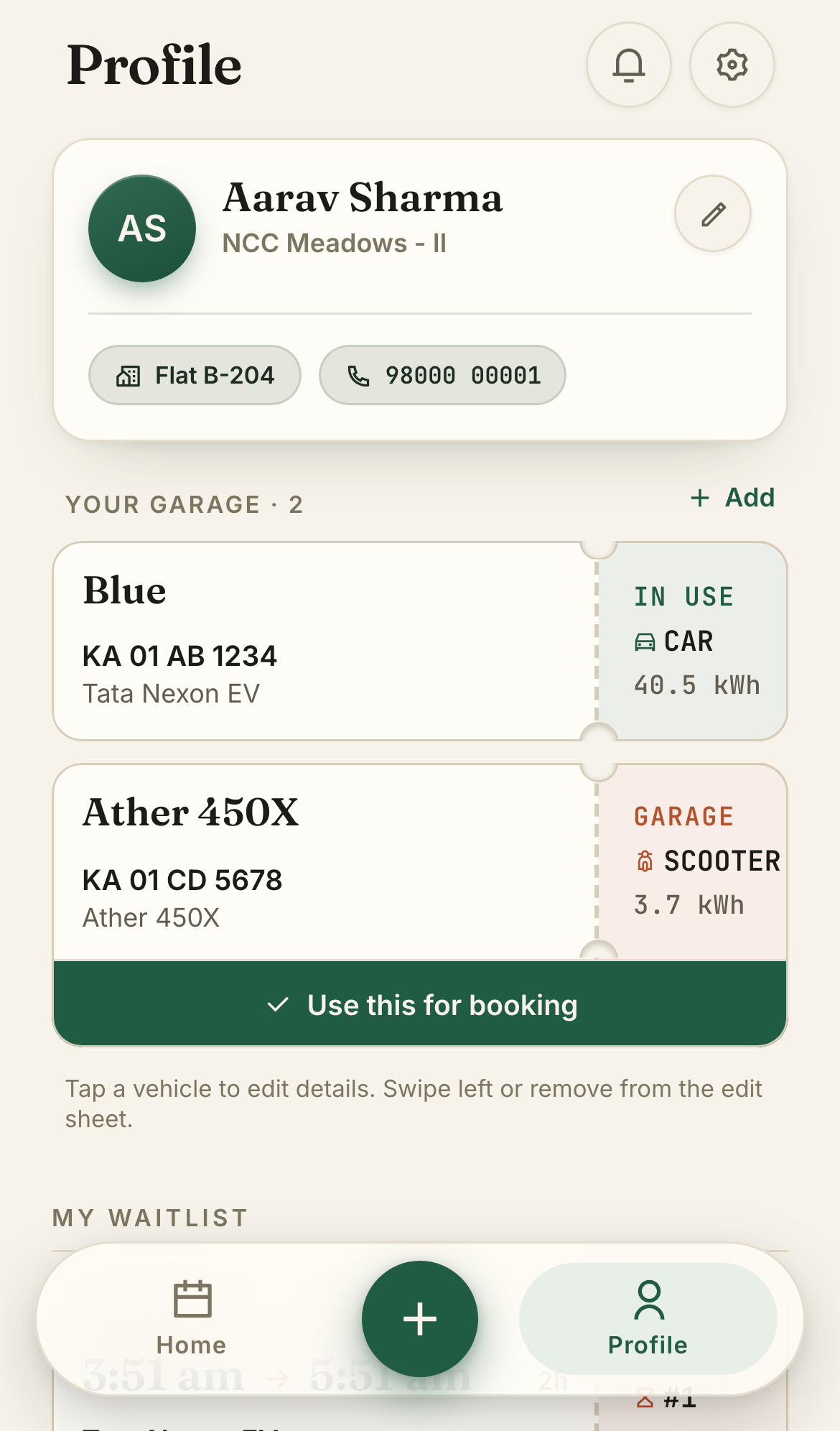
- Profile tab — your resident card, flat, and contact details. Tap edit to change them.
- Garage — add, edit, or remove vehicles. Swipe a vehicle card for actions.
- Settings (gear icon) — theme, notifications, help & guides, feedback, legal links, log out, delete account.
Troubleshooting
I keep getting sent back to the login screen (iPhone)
Install Charge On to your Home Screen using Safari, then sign in from the icon — not from a tab inside WhatsApp or Chrome.
Google sign-in says "not authorized" or "request is invalid"
Use https://chargeonapp.com in Safari (iOS) or Chrome (Android). Avoid in-app browsers opened from chat apps.
I completed my profile but still see onboarding
You need both a complete profile (name, flat, apartment, mobile) and at least one vehicle. Add a vehicle in onboarding or Profile → Garage.
Link preview does not show when I share the app
Share exactly https://chargeonapp.com in a new chat. Messaging apps cache previews — try again after a few minutes or use Facebook's Sharing Debugger to refresh.
"A fresh update is ready" screen
A new version was deployed while you had the app open. Tap Refresh now to load the latest fixes. The screen also lists What's new so you can see what changed.
Still stuck?
Open Profile → Settings (gear icon) → Send feedback. Include your building name, flat number, and a screenshot if you can.